Introduction
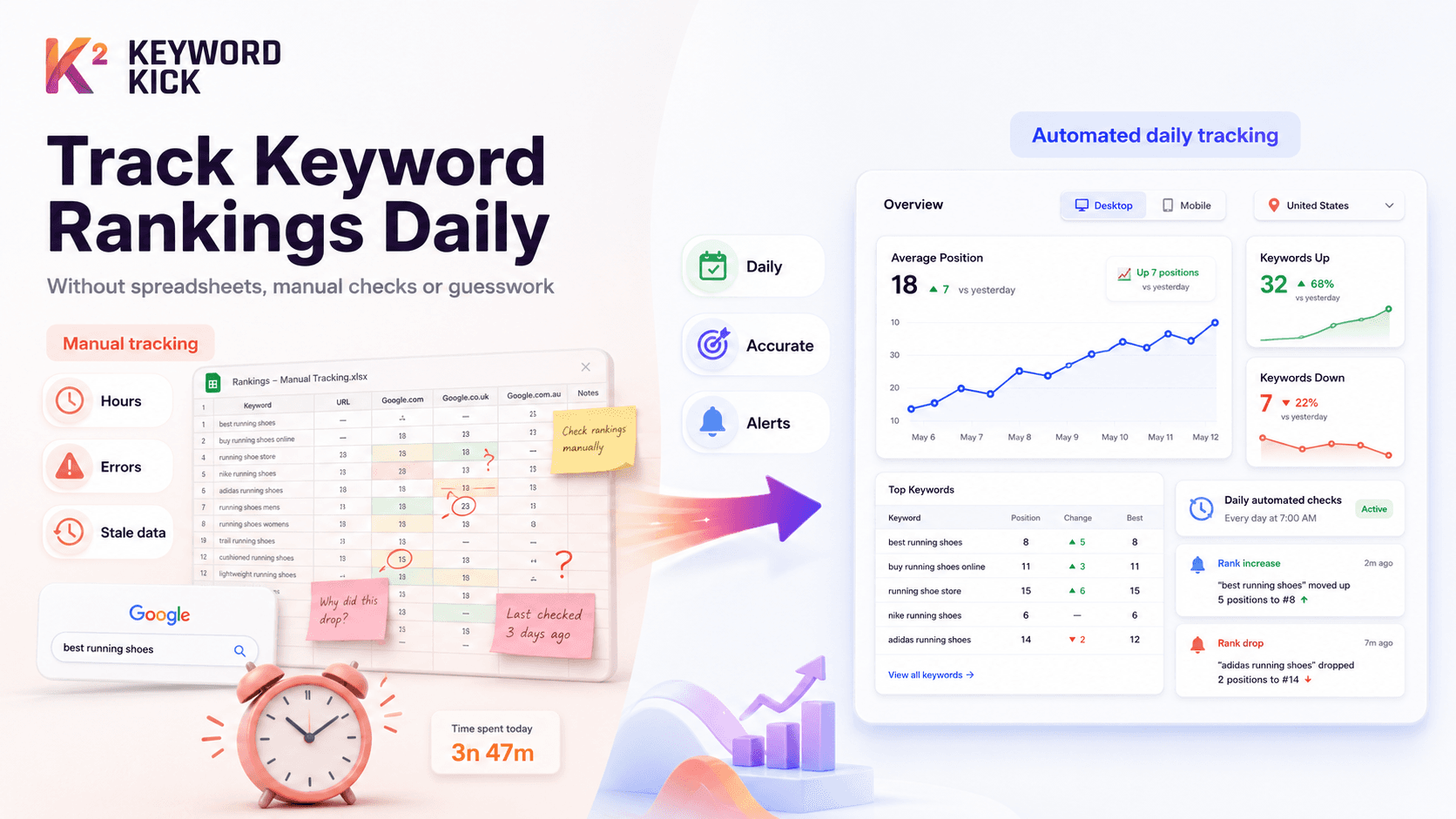
If you've ever spent a Sunday afternoon manually checking keyword positions in Google, copying numbers into a spreadsheet, and color-coding cells to spot trends — you know exactly how painful rank tracking the old way can be.
It takes hours. It's prone to errors. Google's personalized results mean your manual checks aren't even accurate. And by the time you've finished, the data is already stale.
There's a better way. This guide walks you through how to track keyword rankings daily — automatically, accurately, and without ever opening a spreadsheet again.
Why Spreadsheet-Based Rank Tracking Doesn't Work
Before diving into the solution, let's be honest about why so many people still use spreadsheets for rank tracking — and why it holds them back.
The Spreadsheet Method (How Most People Start)
A typical manual rank tracking workflow looks like this:
Open Google, search your target keyword
Scroll through results to find your page
Note the position in a spreadsheet
Repeat for every keyword (10, 50, 200 keywords…)
Add a date column, colour-code changes
Share the spreadsheet with clients or teammates
Repeat the entire process next week
Time investment for 50 keywords: 2–3 hours per week Time investment for 200 keywords: A full day
And that's before accounting for the accuracy problems.
The 5 Problems With Manual Rank Tracking
1. Google Personalizes Your Results
When you search a keyword while logged into your Google account, results are tailored to your search history, location, and browsing behaviour. Your page may rank #3 for you but #9 for your actual target audience. Manual checks are structurally inaccurate.
2. Location Doesn't Match Your Audience
Unless you use a VPN set to your target city or country, your results reflect your physical location — not where your customers search from.
3. You Can't Track Historical Trends Reliably
Spreadsheets can store numbers, but they can't show you smooth trend graphs, flag anomalies, or correlate ranking changes with specific actions you took.
4. It Doesn't Scale
50 keywords is manageable. 200 is painful. 1,000 is impossible. If your SEO practice grows, manual tracking breaks completely.
5. You Miss Changes Between Checks
If you check weekly, you could miss a rank drop that happened on Monday — and spend five days losing traffic before you notice. Daily automated tracking catches changes as they happen.
Spreadsheet vs. Automated Rank Tracker: A Direct Comparison
Factor | Spreadsheet | Keyword Kick Rank Tracker |
|---|---|---|
Time per week (50 keywords) | 2–3 hours | 0 minutes (automated) |
Time per week (200 keywords) | Full day | 0 minutes (automated) |
Accuracy | Low (personalized results) | High (neutral, location-specific) |
Historical trend graphs | Manual, error-prone | ✅ Automatic |
Mobile vs. desktop split | ❌ | ✅ |
Local/city-level tracking | ❌ | ✅ |
Rank change alerts | ❌ | ✅ Email notifications |
Competitor tracking | Manual | ✅ Automatic |
Client sharing | Manual export | ✅ White-label reports |
Scales to 1,000+ keywords | ❌ | ✅ |
Cost | "Free" (your time) | From affordable monthly plan |
The real cost of spreadsheets: If you spend 3 hours/week on manual rank tracking and value your time at $50/hour, that's $150/week — $7,800/year — in time cost. An automated rank tracker pays for itself in the first week.
How Automated Daily Rank Tracking Works
A modern rank tracking tool like Keyword Kick works like this:
You add your keywords once — paste them in, upload a CSV, or import from Google Search Console
The tool checks Google daily — using neutral, location-specific searches without personalization
Positions are recorded automatically — building a historical database from day one
You get alerts when rankings change — significant drops or gains trigger email notifications
You review a dashboard instead of a spreadsheet — graphs, trend lines, and opportunity flags built in
The entire process runs in the background. You spend zero time on data collection and 100% of your time on the decisions that actually move rankings.
Step-by-Step: Setting Up Daily Rank Tracking in Keyword Kick
Step 1: Create Your Project
Sign up and add your domain. Keyword Kick automatically pulls in data from Google Search Console if connected — giving you a head start with keywords your site already ranks for.
Step 2: Create a Rank Tracking Campaign
Click New Campaign and configure:
Campaign name: e.g., "Blog Keywords" or "Client — Acme Corp"
Search engine: Google (and/or Bing)
Target country: Where your audience searches from
Device: Desktop, mobile, or both (recommended: both)
Check frequency: Daily (recommended for most sites)
Step 3: Add Your Keywords
You have three options:
Paste keywords directly — one per line
Upload a CSV — ideal for migrating from a spreadsheet
Import from GSC — Keyword Kick pulls the keywords your site already ranks for
Pro tip: Group keywords by page or topic. "Homepage keywords," "Blog post — coffee grinders," "Product page — running shoes." This makes the data far more actionable than one undifferentiated list.
Step 4: Set Up Rank Change Alerts
Go to Alert Settings and configure:
Drop alert: Notify me if any keyword drops more than 5 positions
Gain alert: Notify me if any keyword improves more than 5 positions
New ranking alert: Notify me when a new keyword enters the top 100
These replace the manual "check every day to see if anything changed" habit entirely.
Step 5: Connect Google Search Console + GA4
This is the step most beginners skip — and it's the most valuable.
Connecting GSC layers real click and impression data on top of your rank positions. Instead of seeing "you rank #6 for X keyword," you see "you rank #6, that keyword gets 2,400 impressions/month, and you're getting 48 clicks — your CTR is 2% which is below the position average."
Connecting GA4 adds conversion and revenue context — you can see which ranking keywords are actually driving business results, not just traffic.
Step 6: Review Your First Report
Within 24 hours, your dashboard shows:
Current positions for all tracked keywords
Historical trend graphs (as data accumulates)
Opportunity flags — page 2 keywords, low-CTR keywords, cannibalization conflicts
Competitor positions for the same keywords
How to Review Daily Rank Data Without Getting Overwhelmed
The most common mistake after setting up rank tracking: checking the dashboard every hour and panicking at every 1-position fluctuation.
Here's a sustainable review cadence:
Daily (2 minutes)
Scan your alerts inbox. If no alerts fired, rankings are stable — nothing to do. If an alert fired, investigate that specific keyword.
Weekly (15–20 minutes)
Review your rank tracking dashboard:
Which keywords improved this week? What changed on those pages?
Which keywords dropped? Investigate potential causes.
Which page 2 keywords are closest to page 1? Prioritize for optimization.
Any new keywords entering the top 20?
Monthly (30–45 minutes)
Pull a month-over-month comparison:
Overall ranking distribution — are you moving more keywords to page 1?
Identify your top 5 biggest wins and top 5 biggest drops
Update your content calendar based on what the data shows
What to Do When Rankings Drop
Automated tracking is only valuable if you act on what you find. When a rank drop alert fires:
Step 1: Check if the page is still indexed Search site:yourdomain.com/page-url in Google. If it doesn't appear, you have an indexing problem — check for accidental noindex tags or robots.txt blocks.
Step 2: Check for technical issues Run a quick audit check on the specific URL. Keyword Kick's site audit flags canonical errors, broken links, and Core Web Vitals failures that can cause ranking drops.
Step 3: Check if a competitor improved Look at who's now ranking above you. Did a competitor publish better content, earn significant new backlinks, or restructure their page?
Step 4: Check Google algorithm update timeline Keyword Kick's core update timeline shows recent Google algorithm updates. If your drop coincides with an update, the cause is likely algorithmic rather than a site-specific issue.
Step 5: Act Based on your diagnosis: update the content, fix the technical issue, build links to the page, or adjust the meta title/description for better CTR.
Migrating From a Spreadsheet to Keyword Kick
If you have an existing spreadsheet with tracked keywords, migration takes under 10 minutes:
Export your keyword list from the spreadsheet as a CSV
Create your first campaign in Keyword Kick
Upload the CSV — all keywords import in one step
Configure device + location settings to match your target audience
Archive your spreadsheet — you won't need it again
Your historical spreadsheet data won't transfer (Keyword Kick starts building history from day one), but your baseline is established immediately with the first automated check.
Spreadsheets had their moment in SEO history — and that moment has passed. Manual rank tracking is inaccurate, unscalable, and costs you time that should be spent on actually improving your rankings.
Daily automated rank tracking with Keyword Kick gives you accurate, location-specific, device-split position data — updated every morning, alerting you to changes as they happen, and building the historical record you need to make data-driven SEO decisions.
Set it up once. Let it run. Spend your time on strategy, not data entry.