You've opened Google Search Console and Google Analytics 4 to prepare an SEO report, but the numbers don't agree. Search Console shows people clicking through from Google, while GA4 reports a different number of sessions. You're left wondering whether traffic changed, tracking broke, or you're comparing the wrong reports.
The useful goal isn't to force those totals to match. It's to connect search visibility with what visitors do on your site, then test whether any difference is stable and explainable or a sign of a defect. A Google Analytics Search Console connection helps you make that distinction, provided you know what each dashboard measures.
How Each Tool Sees Your Traffic
Think of your website as a storefront. Search Console shows how your pages perform in Google's results window, where people decide whether to visit. Google Analytics 4 shows what happens once visitors step inside.
Search Console's impressions tell you how often a result appeared. Clicks count visits initiated from those results, while click-through rate, or CTR, expresses clicks as a share of impressions. Average position summarizes the placement of your highest-positioned result across the impressions included in the report. It isn't a fixed ranking that every searcher sees.
GA4 measures activity on your website. A session groups a visitor's interactions into a visit. Engagement rate describes the share of sessions that meet GA4's engagement criteria, while conversions, represented by key events in GA4, identify actions you've marked as important, such as a purchase or enquiry.
What Search Console and GA4 measure
| Question | Search Console | Google Analytics 4 |
|---|---|---|
| Stage it measures | Before the click, in Google results | After the click, on your pages |
| Core metrics | Impressions, clicks, CTR, average position | Sessions, engagement rate, conversions |
| Breakdowns | Queries, pages, countries, devices | Landing pages, channels, audiences, events |
| Bot filtering | Not applied the same way | Known bots excluded automatically |
| History kept | 16 months in the Performance report | Governed by the report type and property's retention settings, not Search Console's window |
Choose the dashboard that can answer the question
Search Console succeeded Google Webmaster Tools, with Google announcing the rename on May 20, 2015, in its Search Console announcement. Its role is broader than technical troubleshooting: content editors, business owners, and marketers can use it to understand search visibility.
If a page appears frequently but attracts few clicks, GA4 alone can't explain the missed opportunity. It never observes the search result that someone chose not to click. Conversely, Search Console can't tell you whether visitors completed your enquiry form.
For help interpreting site-side measurements, start with understanding Google Analytics 4 for SEO. Teams planning agent-assisted reporting can also consult NotFair's documentation on analytics data access for marketing agents when considering how to provide access to Analytics data.
Working rule: Search Console answers whether people found and chose you. GA4 answers what they did next.
Link Both Tools and Verify the First Joint Report
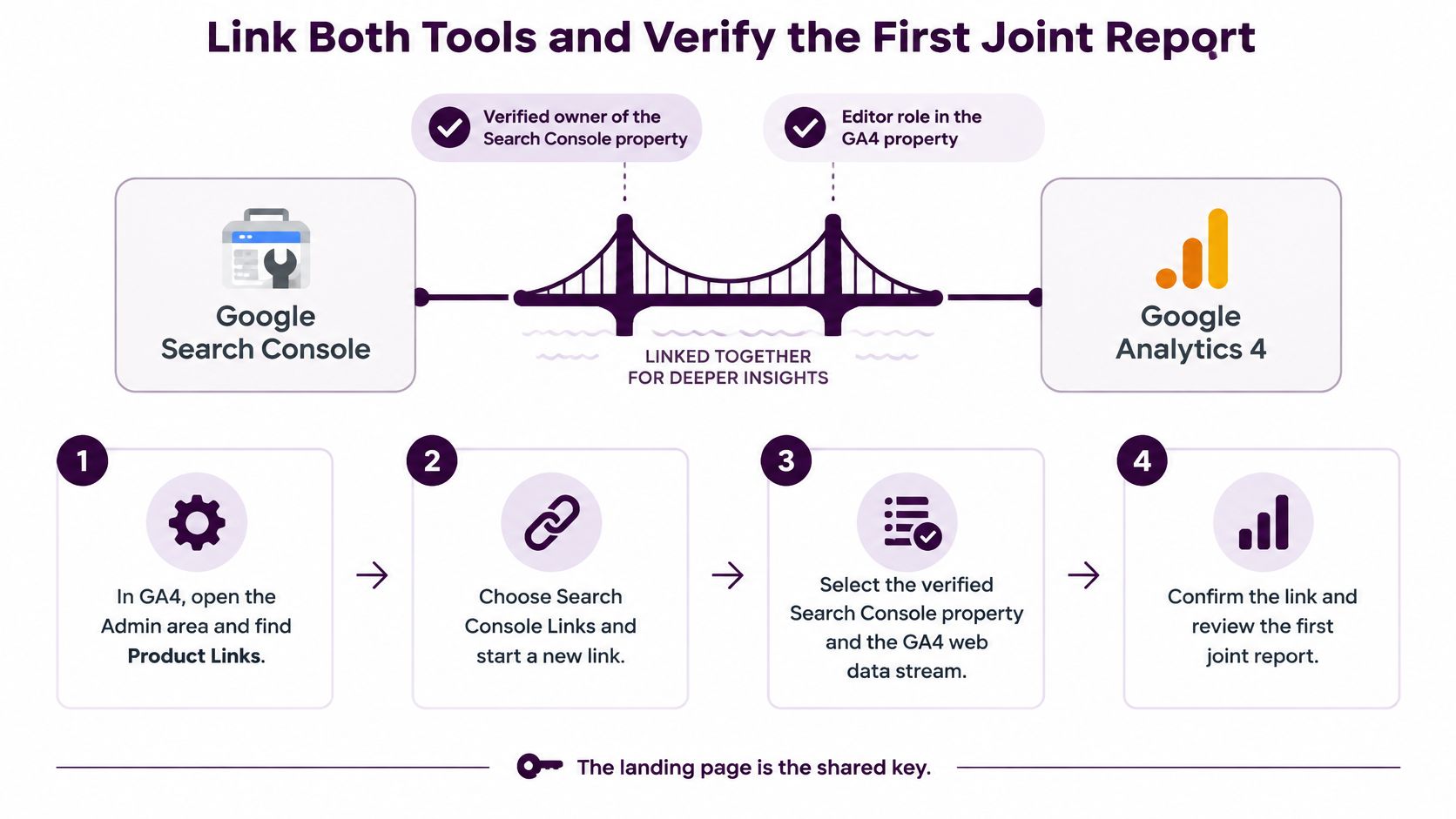
The connection between these tools is a reporting bridge, not a replacement for either dashboard. Before opening the setup screen, confirm that you have both permissions: verified-owner access to the Search Console property and the Editor role in the GA4 property, as specified in Google's Analytics and Search Console integration guide.
Also identify the website you intend to report on. Keep the Search Console property, GA4 property, and web data stream names beside you so you don't connect a similarly named staging site or unrelated business property.
The setup follows this path:
Create the connection
- Open Admin in GA4. Confirm the selected property before changing anything. Agencies managing multiple accounts should check the property name rather than relying on the browser tab.
- Under Product links, choose Search Console links. This is the integration area, not the place where you install the Analytics tag.
- Select Link and choose the verified Search Console property. If it isn't available, check which account you're signed into and whether that account has the required ownership permission.
- Choose the matching web data stream. Compare the website URL and hostname with the Search Console property's coverage. A URL-prefix property for the non-www site may not cover activity recorded on the www version; a Domain property has broader coverage.
- Review the selection and submit. Check the pairing before confirming, especially if the stream name is an internal label rather than the website's public name.
- Open Reports and locate the Search Console collection. If it isn't visible, use the report Library to publish it, where your permissions allow.
- Let the reporting data populate before diagnosing an empty report. Don't treat a newly created connection as proof that historical and recent records are immediately ready to compare.
Know which report you're opening
Google Organic Search Queries displays Search Console queries and their search metrics inside Analytics. Use it to understand what people searched for, not to assign a conversion to each individual search phrase.
Google Organic Search Traffic combines landing-page search metrics with Analytics measurements. Use it to investigate what happened after people arrived on a particular page. Don't expect the query report to behave like a query-level conversion attribution report.
At Keyword Kick, we connect directly to Google Search Console, Google Analytics 4, and Google Ads. Our support team also helps customers set up their account, connect Search Console, configure rank tracking campaigns, and understand their SEO analytics.
Finish with these checks:
- Inspect a shared landing page. Find a page in the landing-page report and inspect its associated query evidence using the same date range.
- Check your highest-impression pages. Confirm that the leading pages have corresponding search and site activity. Investigate missing pages before trusting a sitewide summary.
Reading Search and Site Data as One Story
Say a blog post appears frequently in search, but people rarely click it. In GA4, the visitors who do arrive engage with the article and continue to relevant pages. That combination makes the search result presentation a sensible place to investigate before rewriting the article.
The title may promise something vague, or the displayed snippet may fail to answer the searcher's immediate question. Review the actual search results and the page's query mix, then improve the title and description where appropriate. Healthy engagement supports a hypothesis; it doesn't prove that the snippet is the only problem.
The landing page gives you a practical way to connect those observations.

Diagnostic patterns across both tools
| Pattern | Search Console signal | GA4 signal | First action |
|---|---|---|---|
| High impressions, low CTR | Impressions high, CTR weak for the query and position | Engagement rate in line with comparable pages | Rewrite the title and meta description |
| Clicks rising, engagement falling | Clicks up week over week | Engagement rate and pages viewed per session down | Check that the page matches the query intent |
| Rankings stable, sessions falling | Average position unchanged | Sessions down in a particular channel | Check seasonality and channel mix before editing content |
| Clicks strong, conversions weak | Strong clicks associated with commercial queries | Conversion rate low on the landing page | Align the page offer with the search intent |
Use the pattern to choose an investigation
For rising clicks and falling engagement, inspect the queries gaining visibility. A product comparison page might begin attracting troubleshooting searches. Those visitors can leave dissatisfied even when the article is well written, because the page serves a different purpose.
For stable rankings and falling sessions, check impressions as well as position. Unchanged position doesn't guarantee unchanged demand. Also isolate Google organic traffic in GA4 so a decline in email or paid traffic doesn't trigger unnecessary SEO edits.
For strong clicks and weak conversions, inspect the visitor's next step. A commercial landing page may have an unclear offer, a difficult form, or an awkward mobile purchase path. Check that the key event itself still records correctly before changing the offer.
If the evidence points toward search visibility rather than on-site usability, ranking improvement advice from Linkbuilding provides a separate resource for considering ranking work. Keep that work tied to the diagnosed problem rather than adding links or rewriting copy by default.
Start with landing page, device, and country in the linked reports. Record the page, date range, filters, and proposed change so someone can repeat the comparison during the next review.
A search signal and a site signal together help narrow the cause. Either signal alone usually identifies only a symptom.
Data Limits That Shape Your Reports
A spreadsheet export can look complete because it has a total row and a tidy list of queries. That appearance is misleading if you treat the visible rows as an exhaustive record of search demand.
Google's Search Console data extraction guidance documents an interface export limit of 1,000 rows, an API maximum of 25,000 rows per request, and an export ceiling of 50,000 rows per day per property and search type. It also describes a quota of 1,200 queries per minute per site and per user.
Search Console and linked-report limits
| Limit | Value | Practical effect |
|---|---|---|
| Interface export | 1,000 rows | Use the API for broader long-tail query analysis |
| API rows per request | 25,000 rows | Paginate with start-row offsets |
| API export ceiling | 50,000 rows per property, per search type, per day | Partition extraction by search type and date |
| Performance history | 16 months | Archive monthly exports to keep older trends |
| Linked GA4 delay | Up to 48 hours | Don't judge the last two days as complete |
| API quota | 1,200 queries per minute per site and user | Cache results, batch queries, and retry with backoff |
Preserve what the export can't tell you
The Search Analytics endpoint returns top rows rather than guaranteeing every query-page combination. Some queries are anonymized, and internal limits mean that pagination isn't a promise of completeness.
A missing query row is not evidence of zero demand. Keep aggregate totals alongside extracted detail, and label query-level exports as incomplete where appropriate. Don't add the visible query rows together and assume that sum must equal every total in the dashboard.
A repeatable extraction routine should:
- Partition by date and search type. Keep web, image, and other search datasets clearly identified.
- Paginate deliberately. Use start-row offsets and retain extraction logs so interrupted jobs can be investigated.
- Reduce unnecessary requests. Cache completed periods, load new data incrementally, and use backoff when retrying failed requests.
Make daily comparisons comparable
Search Console assigns dates using Pacific Time. Normalize the reporting boundaries before joining daily records with a GA4 property that uses another time zone, particularly when investigating a sudden change around midnight.
For linked reports, leave recently collected data out of performance judgments until it has had time to populate. For longer-term analysis, save monthly exports with the date range, filters, property, and extraction method attached.
Use the traffic analysis guidance for SEO teams to build a repeatable review process. The practical objective is an archive you can interpret later, not merely a folder full of files.
Why Search Console and GA4 Numbers Never Match
Exact agreement is the wrong success criterion. These systems measure different events under different reporting rules, so matching totals wouldn't prove that either implementation was correct. Ask instead whether the gap is stable, explainable, and actionable.
In its comparison of Google Analytics and Search Console, Google explains that Search Console counts Google Search clicks while Analytics relies on tracking and attribution; Search Console also assigns performance to Google's selected canonical URL, and the systems handle bots differently. These are structural reasons to investigate differences rather than assume every difference is an error.
Run the checks in order
- Align dates and time zones. Choose a completed reporting period and apply consistent boundaries. Avoid comparing a finalized search period with partially populated Analytics data.
- Confirm scope and hostname. Compare Google organic traffic with Google Search activity, not all GA4 sessions. Check whether the Search Console property and Analytics stream cover the same site areas.
- Inspect canonical URLs and redirects. Search for the canonical page in Search Console, then inspect the actual landing URLs recorded in GA4. Group equivalent destinations carefully rather than comparing mismatched URL strings.
- Test tracking and consent behavior. Check the Analytics tag on the affected landing-page template. Review consent choices, tag triggers, and whether redirects prevent measurement from loading.
- Isolate country and device outliers. Determine whether the discrepancy is sitewide or concentrated. Inspect unusual traffic quality and hostname patterns before assuming that all recorded activity represents genuine prospective customers.
- Compare the gap over repeated completed periods. Annotate releases, consent-platform changes, migrations, and tag updates. Look for the point where the relationship changed, not just the size of today's difference.
Apply the stable-or-defect test
A consistent gap concentrated in a particular device or country segment can be explainable, but stability alone doesn't prove correctness. Test a plausible cause, such as consent behavior, against the implementation and segment evidence.
A gap that changes abruptly on a release date should trigger a tracking investigation. Check the changed templates, tag deployment, redirect behavior, and consent configuration before interpreting the movement as an SEO gain or loss.
Decision test: Accept a difference when you can explain it with evidence. Investigate a new difference when its timing or concentration points to a changed measurement process.
Paid traffic requires the same discipline about measurement units. Come Together Media LLC's guide to compare ad clicks and GA4 sessions is useful when a broader acquisition report mixes advertising clicks with site sessions.
Keep a reconciliation note in the report: the comparison scope, the known reason for the difference, and any unresolved checks. That's more useful than a warning that the totals don't match.
Monthly Reporting Examples That Use Both Tools
A useful monthly report ends with a decision someone can act on. It doesn't stop at separate screenshots from Search Console and GA4.
Consider an online shop with a collection of product guides. The marketer notices that more searchers are reaching those guides, but the commercial outcome hasn't improved. Rather than rewriting every page, they investigate the route from search result to product enquiry.
An online shop's monthly review
The marketer follows this sequence:
- Compare Search Console totals. Review clicks and impressions for the current and previous completed reporting periods, noting calendar differences.
- Identify queries gaining impressions without a corresponding improvement in clicks. Inspect the landing pages that appear for those queries.
- Check GA4 engagement on those pages. Separate mobile and desktop activity so an aggregate improvement doesn't hide a device-specific problem.
- Inspect purchases or enquiries by landing page and device. Confirm that the events record correctly.
- Assign a page-level recommendation and recheck date. Keep the recommendation narrow enough to implement and evaluate.
In this hypothetical review, visitors engage normally on desktop but struggle with the mobile guide template. The report's conclusion should be specific: Product guides attracted more search clicks, but mobile engagement weakened, so inspect and fix the mobile template before rewriting the guides.
That sentence separates the observed change from the proposed response. The report should also name the affected template, the person responsible, and the next review date.
A blogger's content review
A solo blogger sees an article gaining impressions while remaining below the leading results for its target queries. They inspect the competing pages and notice that their own introduction delays the answer.
They rewrite the introduction and clarify the headings, then log the publication change. During later completed reporting periods, they check whether average position and relevant clicks improve, while using GA4 to see whether the arriving visitors engage with the revised article.
If both improve, the blogger has a useful reason to retain the change, not proof that the edit alone caused every movement. They should still check query mix and avoid making unrelated revisions before evaluating the result.
Teams that track performance with analytics dashboards should preserve this same decision trail. Don't publish raw totals side by side without the date range, time-zone treatment, comparison scope, and explanation of the gap.
Keyword Kick brings Google Search Console and GA4 into a shared workspace so you can investigate search visibility alongside on-site performance. Visit Keyword Kick to connect your accounts and use the Free plan's integrations to begin a repeatable SEO review.