Traffic is flat, the rankings report looks decent, and nobody on the team can explain why clicks haven't moved. That's the moment the team often opens Google Search Console and then gets stuck staring at tabs, filters, and status labels they don't fully trust.
The problem usually isn't access to data. It's turning that data into action. A page can rank, but miss clicks because the title doesn't match intent. A sitemap can be submitted, but key URLs still won't index because robots rules or broken responses are blocking them. Search Console shows the signals, but it won't prioritize your work for you.
That's why learning how to use Google Search Console matters beyond setup. Used well, it becomes the operational layer for SEO: what's indexed, what's slipping, what's underperforming, and which pages need attention first. If you need a quick baseline definition before digging in, Keyword Kick's Google Search Console glossary entry is a useful reference.
Introduction
Google Search Console is where SEO stops being guesswork.
A lot of teams start with rankings or traffic dashboards and miss the middle layer that explains what changed in Google Search. Search Console fills that gap. It shows whether Google can crawl your pages, whether those pages are indexed, which queries trigger impressions, and where click-through rate breaks down even when rankings look respectable.
The practical value is simple. If impressions drop, you can isolate the affected pages and queries. If clicks stall, you can compare position against CTR and decide whether the issue is visibility, intent mismatch, or weak search snippets. If new content never takes off, you can check whether Google has indexed it at all before rewriting the page for no reason.
Search Console also has history behind it. Google notes that Search Console was officially launched in 2015 as the successor to Google Webmaster Tools, and it has become the primary tool for over 30 million websites globally to monitor indexing status, search performance, and security issues, according to Google's Search Console documentation.
Practical rule: Don't open Search Console to “check SEO.” Open it to answer a specific question. Why did clicks drop? Which pages are stuck on page two? Which URLs Google can't index?
That shift changes everything.
Account Setup and Verification
The first decision is property type. Get this wrong and your data will be incomplete from day one.
Choose the right property
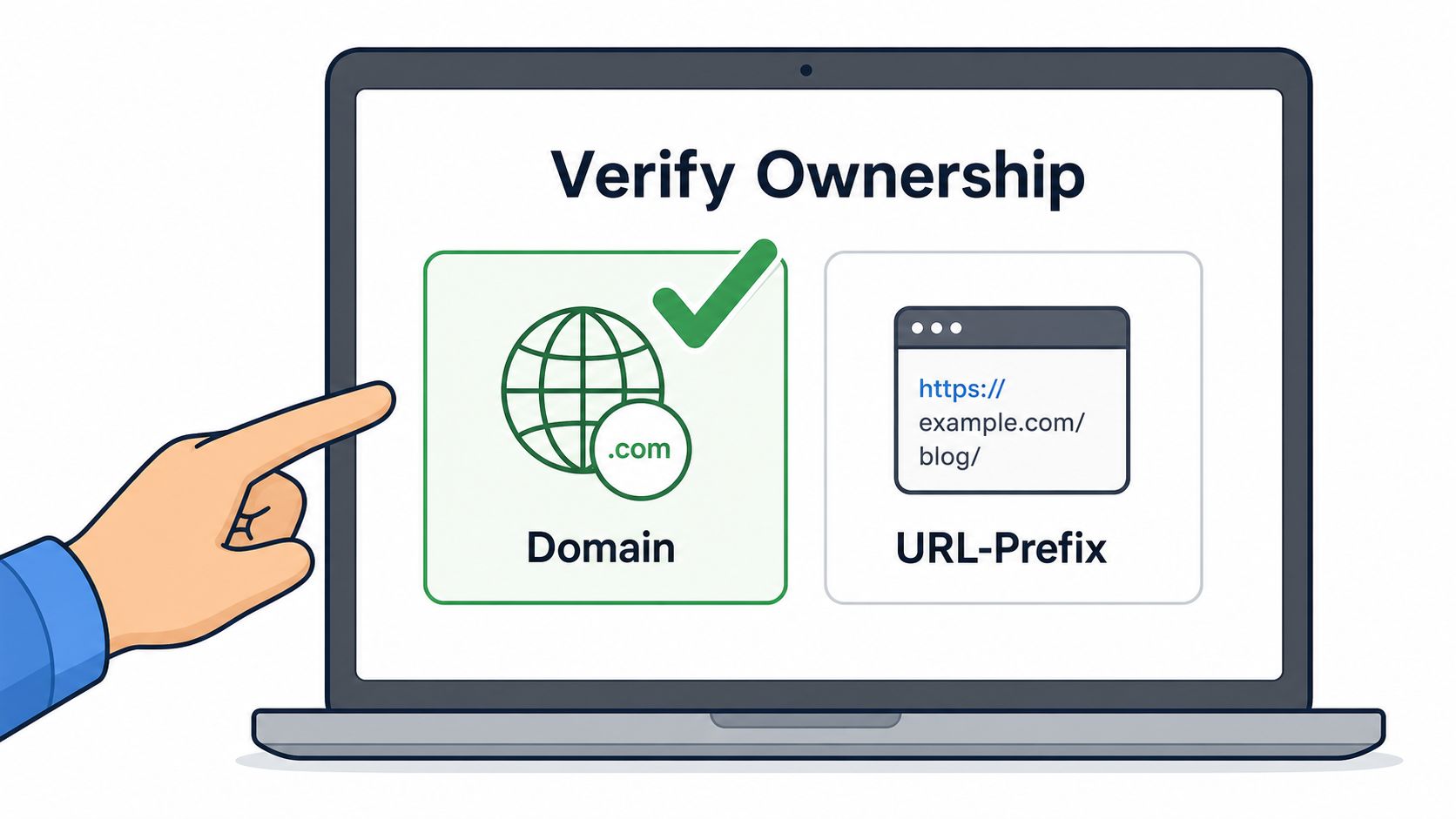
A Domain property is usually the better option for most businesses. It collects data across protocols and subdomains, so you're not splitting signals between versions of the same site.
A URL-prefix property is useful when you need to isolate one section, such as a subfolder for a client region, a staging-like public environment, or a specific subdomain handled by a separate team. It's narrower, which can help operationally, but it's easier to miss data if your site architecture is messy.
Use this rule of thumb:
Use Domain property when you want one source of truth across the whole site.
Use URL-prefix property when you intentionally need segmented reporting.
Use both only when there's a real reporting reason. Otherwise you create duplicate work.
Pick a verification method that fits your workflow
Google supports several verification paths. In practice, the best method depends on who controls the website.
DNS verification works best for long-term ownership. It's the cleanest option for domain-level properties and survives many site changes.
HTML tag verification is fast when you control the site template and need access quickly.
Google Analytics or Google Tag Manager verification can work for marketing-led setups, but they're less reliable if tags get removed, containers change, or permissions shift.
If you manage SEO for clients, DNS is usually the least fragile choice. If you're working with a CMS team that can place a tag in minutes, HTML verification is often the fastest route to live data.
The best verification method isn't the easiest one today. It's the one that still works after a redesign, tag cleanup, or agency handoff.
Common setup mistakes
Most bad Search Console setups fail in boring ways:
The wrong property was added. Teams verify a URL-prefix property and assume they're seeing everything.
Verification gets removed. Header tags disappear during template edits.
Ownership is too narrow. One person sets it up under a personal account and nobody else can access it later.
The preferred site version isn't considered. This creates confusion when reviewing canonical and indexing behavior.
If you're setting up Search Console for the first time, finish by adding the right users immediately. Give the SEO lead ownership, give collaborators the access they need, and document which property is the reporting source of truth.
Sitemap Submission and Testing
A sitemap doesn't fix indexing by itself. It gives Google a cleaner map of the URLs you want crawled and indexed. That matters most when the site is large, new, recently migrated, or updated frequently.
What to include in the sitemap
Only include URLs you want in Google's index. That means indexable canonicals, not redirects, not parameter duplicates, not thin utility pages, and not pages blocked from crawling.
A solid sitemap should reflect editorial intent. If a page shouldn't rank, it shouldn't be in the file.
For a deeper walkthrough on format and structure, Keyword Kick's XML sitemap guide is a good companion resource.
Submit, then test against real index status
Inside Search Console, go to Sitemaps, submit the sitemap URL, and check the response. A successful submission only means Google received the file. It does not mean the URLs inside it are healthy.
After submission, cross-check the sitemap against the indexing reports and your own crawl data. Look for patterns like:
Blocked URLs that were included by mistake
Submitted pages that aren't indexed
Orphan pages that exist in the sitemap but lack internal links
Old URLs left over from previous site structures
If you submit a sitemap before fixing crawl blockers, you create noise instead of clarity.
What works and what doesn't
What works is a sitemap tied closely to your current canonical URL set and updated when content changes.
What doesn't work is treating the sitemap as a wish list. Search Console won't reward a bloated file full of weak, duplicate, or blocked pages. It will just give you a longer list of issues to clean up later.
Analyzing Performance and Coverage Reports
Consequently, Search Console offers utility every week, extending beyond migrations or technical audits.
Google Search Console processes over 5 billion search queries daily and reports real-time data on impressions, clicks, average position, and CTR. It also notes that pages in positions 1 to 3 capture approximately 75% of all organic clicks, while pages at position 7 or lower receive less than 5% of traffic, according to this guide to Google Search Console. That's why the Performance report matters so much. It shows whether a page has a ranking problem, a CTR problem, or both.
Read the Performance report like an operator
Start with Pages, not Queries.
Jumping straight into keyword lists often leads to optimizing fragments rather than pages capable of driving traffic. Pages view tells you where the opportunity sits. Once you identify a page with strong impressions but weak clicks, then switch to Queries to see which searches are driving that mismatch.
Focus on these patterns:
High impressions, weak CTR usually points to title, meta description, or intent mismatch.
Average position just outside the top results often signals a page that needs better on-page targeting, stronger internal linking, or fuller coverage.
Click drops with stable rankings can indicate lower search demand, SERP feature displacement, or less compelling snippets.
When a page ranks but doesn't earn clicks, don't rewrite the whole article first. Check whether the search result itself gives people a reason to choose you.
Use comparisons instead of snapshots
A single date range can mislead you. Compare one period against another and inspect movement at the page level.
Useful comparisons include:
Before and after a title update
Pre-migration vs post-migration
Last 28 days vs previous 28 days
Mobile vs desktop performance for the same page
That lets you answer better questions. Did clicks fall because rankings slipped, or because impressions dropped first? Did one device segment weaken while the other held steady? Did a specific page group lose visibility or just a handful of URLs?
Coverage and indexing issues
The indexing reports tell you whether poor performance is even worth diagnosing yet. If a page isn't indexed, CTR analysis is irrelevant.
Use coverage-style reporting to review:
404 pages that should exist
Blocked pages that were meant to be indexable
Duplicate or alternate versions that shouldn't be treated as primary URLs
Valid pages with warnings that need manual review
Here's a simple reference point for how CTR pressure changes by ranking band:
Position | Average CTR |
|---|---|
1 to 3 | Approximately 75% of all organic clicks |
7 or lower | Less than 5% of traffic |
This isn't a page-level benchmark. It's a reminder that ranking context matters before you judge page performance.
Inspecting URLs and Resolving Technical Issues
When a report flags a page, the URL Inspection tool is where you stop guessing.
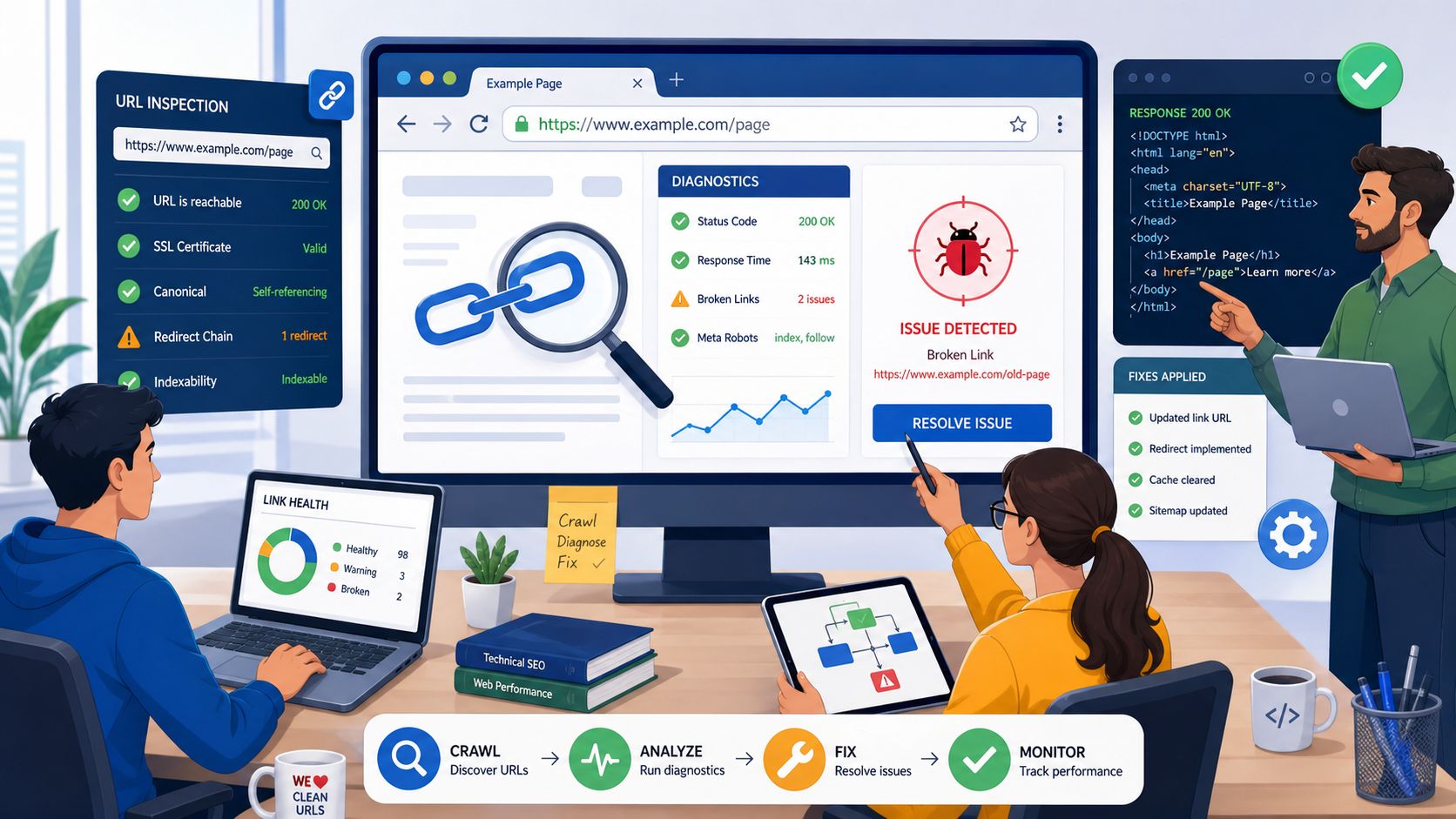
Use URL Inspection to answer one page-level question at a time
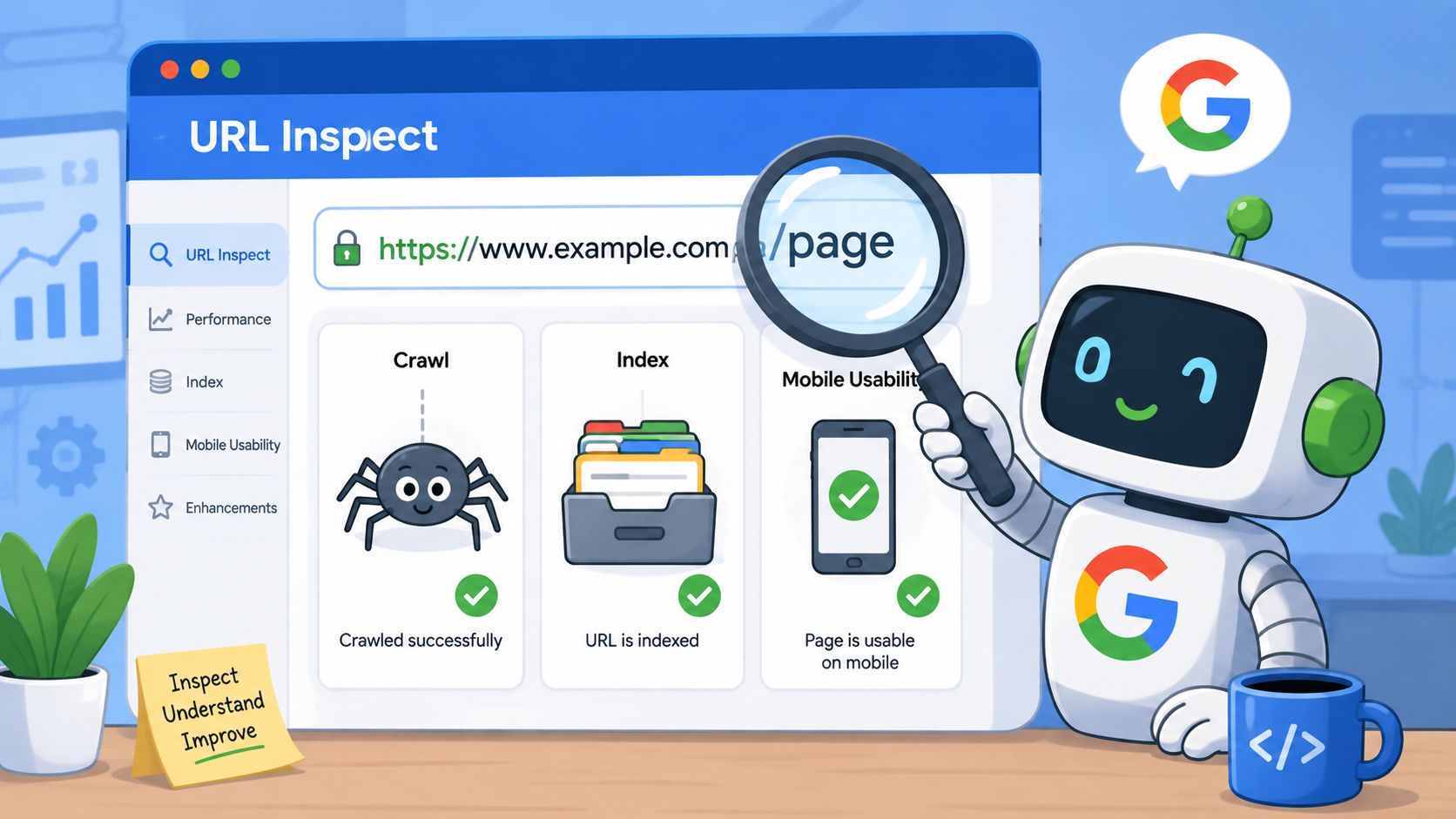
Inspect the exact URL, then check four things in order:
Is it indexed
Can Google crawl it
Is the selected canonical the one you expect
Are there page experience or enhancement issues worth fixing
This sequence matters. Teams often jump to schema, mobile details, or rendering screenshots while the page is still blocked from indexing. If crawl or indexability is broken, fix that first.
For broader failures, the workflow is straightforward. For diagnosing indexing failures at scale, filter the Page Indexing report for issues like Blocked by robots.txt or Not found (404), validate fixes using Google's Rich Results Test, and then request indexing. Without automated monitoring, resolution times average 4 to 7 days versus same-day updates with Request indexing, according to SEO.com's Google Search Console overview.
What to do after you find the issue
Different issues need different responses.
Blocked by robots.txt means the page can't be crawled as intended. Confirm whether the block is deliberate before changing anything.
Not found (404) may be fine for removed pages, but it's a problem when a live page should still exist or when internal links point to it.
Canonical conflicts usually come from template logic, duplicate URL paths, or inconsistent internal linking.
Security or manual action warnings need immediate review. Don't keep publishing content until you understand the scope.
If you're dealing with “crawled, currently not indexed” patterns, this quick guide to boost indexing from Up North Media is a practical companion for troubleshooting likely causes.
A request for indexing is not a fix. It's the final step after the page is actually eligible to be indexed.
Build a repeatable response routine
The teams that resolve technical SEO issues fastest don't rely on memory. They use a simple triage system:
Critical means indexability, security, or major crawl access problems.
Important covers canonicals, redirects, and recurring template-level mistakes.
Routine includes enhancements and lower-risk cleanup.
That keeps urgent work from getting buried under minor warnings.
Linking Analytics and Prioritizing SEO Actions
Search Console tells you how pages appear and perform in Google Search. Google Analytics 4 tells you what users do after the click. You need both if you want a credible action plan.
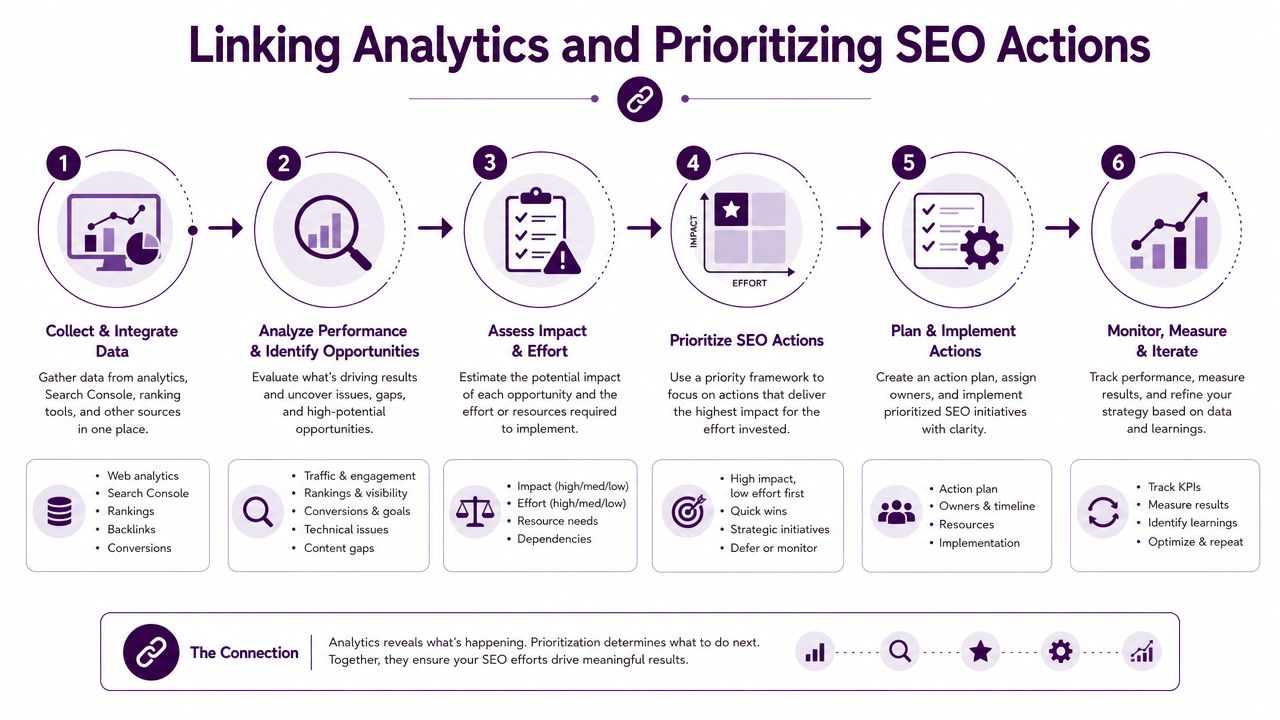
Google states that properties linked to both Search Console and GA4 see a 25% higher rate of accurate conversion attribution compared to using GA4 alone, and that 68% of top-performing SEO teams use the combined dashboard to prioritize content updates based on engagement metrics rather than click volume alone, according to Google's Search Console help documentation.
Link the data, then change your prioritization logic
A common mistake is prioritizing pages only by impressions. That creates a queue full of visible pages, not necessarily valuable ones.
A better approach is to review Search Console page and query data alongside engagement and conversion behavior in GA4. Keyword Kick's guide to Google Analytics for SEO is useful if you want the reporting side of that setup.
Once the connection is in place, sort pages into practical buckets:
High impressions, weak CTR, decent engagement. These usually need title and snippet work first.
Page two rankings with strong on-site behavior. These are often your best content refresh candidates.
Good clicks, poor engagement. The query may be mismatched to the page promise.
Traffic drops with session declines. Cross-check whether the visibility problem started in Search Console before chasing analytics noise.
A workflow that produces a real task list
For a high-precision content gap analysis, filter the Performance report by Pages, select a URL, switch to Queries, and apply a regex filter for positions 8 to 20. Adding those queries naturally to H2s and internal links typically yields a 15% to 25% CTR improvement within 30 days, according to The Stacc's Google Search Console guide.
That's the point where raw data becomes operational SEO. Instead of “optimize blog content,” you can create tasks like:
Refresh the title and description on pages with strong impressions but soft CTR.
Expand sections on pages ranking in positions 8 to 20 where query intent is aligned.
Add internal links from relevant supporting pages using natural anchor text tied to the target query.
Flag pages with strong search visibility but weak GA4 outcomes for intent review, not just on-page expansion.
Don't prioritize pages because they look busy in a dashboard. Prioritize pages where search visibility and business value intersect.
This is the missing layer in many SEO routines. Search Console gives you the search-side evidence. Analytics gives you the downstream outcome. Together they tell you what deserves work first.
Conclusion and Next Steps
Google Search Console is most useful when it becomes a habit, not a troubleshooting tool you open after traffic falls.
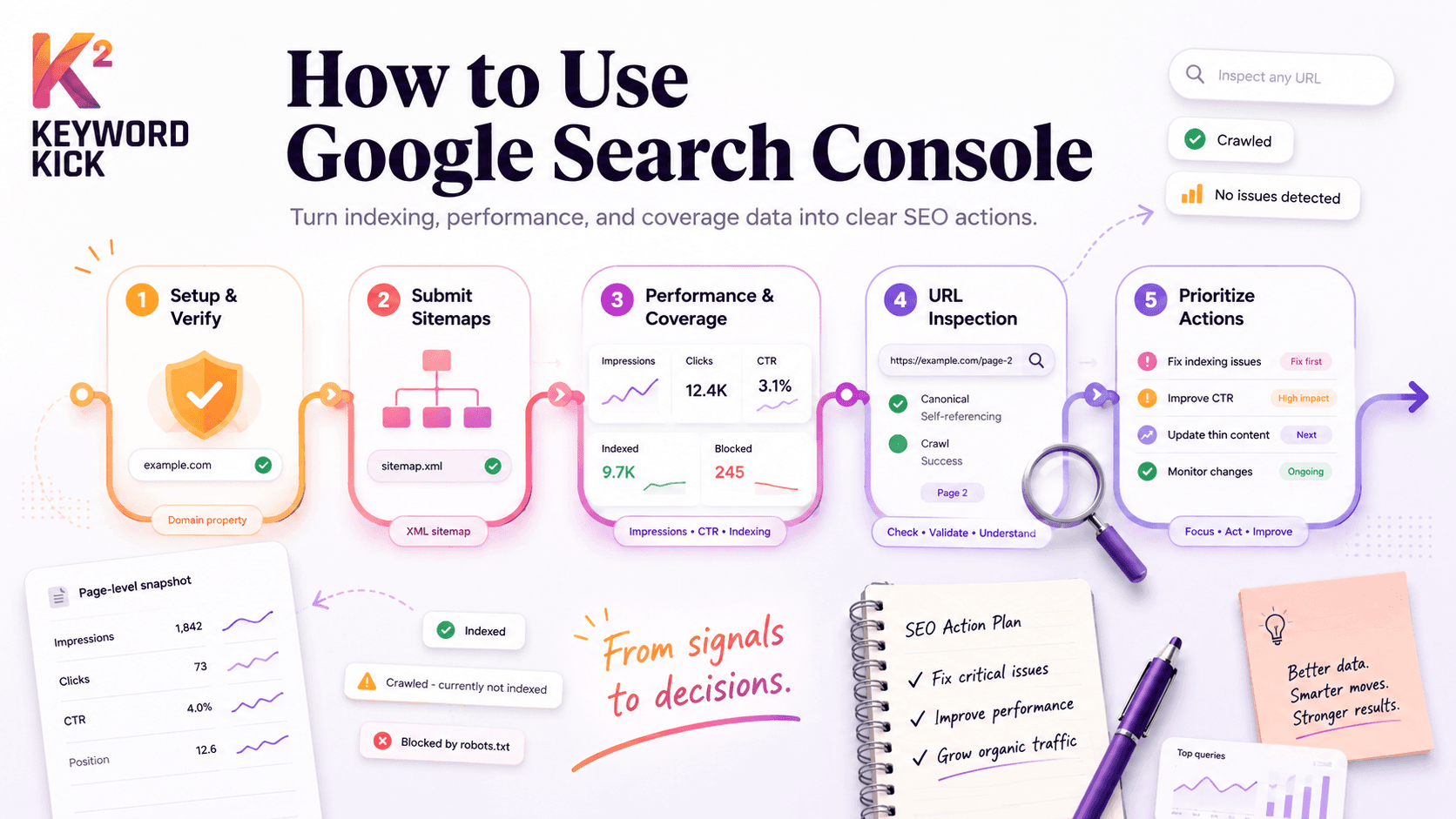
The practical workflow is straightforward. Set up the right property. Submit a clean sitemap. Review Performance for pages with visibility but weak clicks. Use indexing reports and URL Inspection to resolve technical blockers. Then connect search data with analytics so your priorities reflect both demand and outcome.
That routine helps you catch problems earlier and make better trade-offs. You stop wasting time rewriting pages that aren't indexed. You stop chasing keywords when the underlying issue is CTR. You stop treating every warning as equally urgent.
The teams that get the most from Search Console don't just read reports. They turn them into a weekly decision system. Check the account on a schedule, keep a short list of page-level opportunities, and work from the pages where search visibility and business impact overlap.
If you haven't built that rhythm yet, start small. Review your top pages, inspect one indexing issue, and identify one page-two URL worth improving this week.
Keyword Kick helps turn scattered SEO data into a prioritized action plan. If you want one workspace for Search Console, GA4, rankings, backlinks, audits, and clear next-step recommendations, try Keyword Kick.